Since I’m having a karaoke contest, I figured I should write up a how to on recording the karaoke track. All you need is Audacity, the audio file that you want to record over, and a microphone. You might also want some headphones if you don’t have a headset mic.
Audacity is a free, open source audio editor. You can get it here.
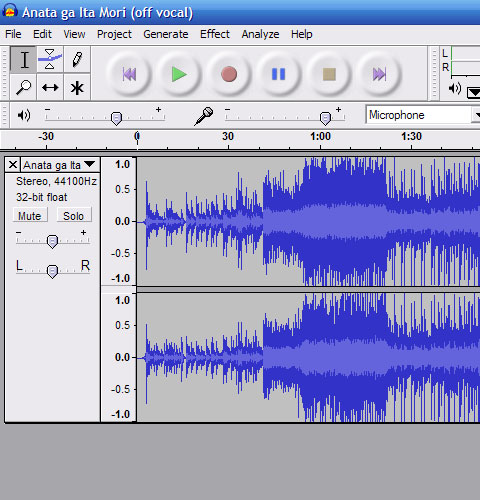
Open up Audacity, and within audacity, open your karaoke sound file. I’m assuming you got the sound file legally. Please don’t ask where to download the karaoke files. Audacity should look something like this:
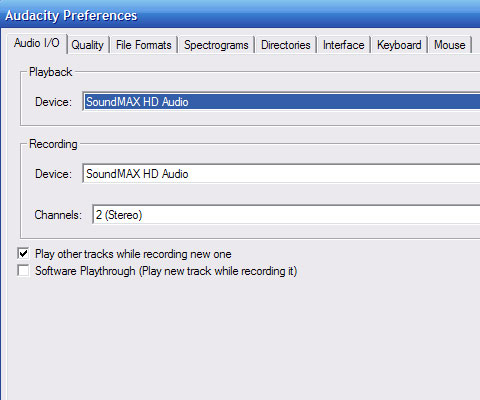
Next, we’ll set up Audacity to play the background track while simultaneously recording. Click on Edit-> Preferences. On the “Audio I/O” tab, click the check box that says “Play other tracks while recording new one.”
Next, return to the main window of Audacity. You’ll now be able to hear the background track while recording the new one. Just click on the big red record button, and sing along to the off vocal track. You should wear headphones or a headset microphone so that the music doesn’t feed back into the microphone.
Once you’re finished recording the awesome karaoke, you’ll need to export the file. Click on File-> Export As MP3.
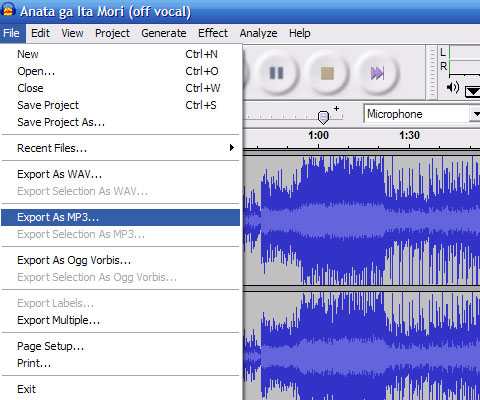
If this is the first time you’ve exported an MP3 in Audacity, it will ask you for the lame_enc.dll file. You can download it here. Just save it somewhere safe and point Audacity to the file.
Audacity will write both tracks to one MP3 file. You can then share it with friends, family, whoever! You can even enter the Basugasubakuhatsu karaoke contest! Have fun!
9 replies on “How To: Record Your Voice Over A Karaoke Track”
Ahhh, Audacity. I used to love this program, but I ended up purchasing SoundForge off of my professor.
… wait a minute, Karaoke contest?
Sounds like fun. If I can get a microphone/headphone I might consider joining. 😀
Oh and, I don’t hear a deadline mentioned. When will be the karaoke contest’s closing date?
Yeah I was using this to record my entry. But the funny thing is, I still sound like a decomposed duck. Any software to solve this problem?
@tj han Try http://www.makemesoundlikebritney.com
@tjhan: I found that using a usb mic (I used my logitech socom one) sounded better than an average mic (the one I use for the podcast). If you can bust out the big bucks, I’d suggest getting a sound board and pro tools, but I don’t think that’s very viable…
thank u
Hello,
When I open a karoke file and set the preferences as you mentioned and come back i cannot hear the music until I play it. But, when i play the file I cannot record my voice. Please help me as I am relly interested in music! Thanks for your help
Alüminyum radyatör arayanlar için em doğru adres firmamızdır
Elektrikli radyatör de mevcut